
Main points
- Ukrainian iPhone users shared 12 non-obvious smartphone features that can improve daily use.
- Key features include: flight tracking through Notes, using AirPods as a microphone, searching photos by object, document scanner in Notes, and controlling your iPhone from your MacBook.
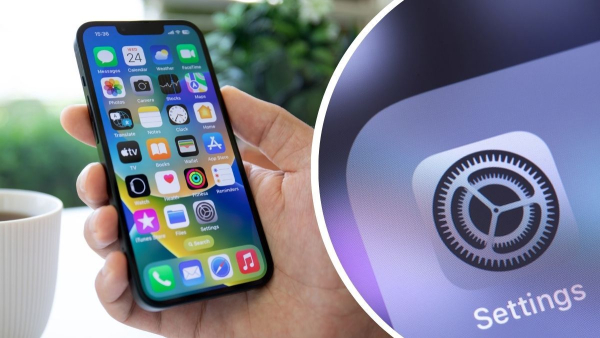
Unobvious and useful iPhone features / Collage of Channel 24
A simple question recently went viral on Threads among Ukrainian iPhone users: what non-obvious smartphone features do you actually use? In the comments, people started sharing dozens of tips, life hacks, and just plain interesting ways to interact with the iPhone.
We have selected 12 of the most interesting features that, in the opinion of 24 Channel , can really change your daily experience of using the iPhone.
The original discussion was suggested by Alyona Deng on her Threads page.
1. How to track a flight directly from Notes?
Notes are an extremely useful tool on any smartphone. You can quickly enter the necessary information here and save it so as not to lose it. But what if your smartphone automatically pulls up the expanded data for an important note?
This is exactly what happens when you simply write a flight number (for example, PS123) in Apple Notes, the system recognizes it as a flight and loads additional information.
Just hold down the number and a card with flight information will appear: status, departure time, route. You can also find a flight using Spotlight search – just enter the number in the search bar.
2. How do I activate “Listen” via AirPods?
Wouldn't it be cool if you had ears in every room of your house? And what do you think is a realistic way to organize something like that? You could leave at least one “ear” in the right room and use it as an external microphone transmitter.
The Live Listen feature allows you to use Apple AirPods as a kind of baby monitor. You leave one earbud in the room, the other in your ear, and everything works (as long as all 3 devices are within range, of course).
To activate this feature, simply tap the ear icon in the control panel and select “Live Listen.” iPhone transmits sound from the microphone to the headphones, so you can hear everything that’s happening in the room.
3. How to search for photos in the gallery by object?
We don't always remember all the important photos we took on our smartphone. Even more often, we need to find a photo that was taken several months ago, and this can be done without scrolling through the entire gallery.
The Apple Photos app has a feature that lets you search for photos by description. For example, you can enter the word “apple,” “cat,” or “passport” and the system will find all photos that contain the corresponding object.
It works thanks to built-in machine learning. Sometimes more accurate than you expect.
4. How to scan documents into Notes
Apple Notes also has a full-fledged document scanner, which is very useful in many cases. The function allows you to get a scan copy of an important document using a regular photo.
Here's how to do it:
- Open a note → camera → “Scan documents”.
The application automatically smooths edges, improves contrast, and saves the file in PDF format. For those who work with contracts, invoices, or passports, this can be a very useful tool for every day.
5. How to turn on a flashlight with the “Lumos” spell?
It seems that Siri's developers were fans of the Boy Who Lived franchise. Using the voice assistant, you can command Siri to turn on the flashlight, but why do it the usual boring way when you can do it with a little magic?
All you need to do is activate Siri and say “Lumos” – the flashlight will turn on.
The “Nox” team, by the way, turns it off. The function is more of an entertainment feature, but Harry Potter fans appreciated it.
6. How to display your own icon in the status bar?
This feature has no practical use other than entertainment, but it can be very useful for improving your well-being. The bottom line is that we can place an image of our favorite emoji or figure in the system tray at the top of the screen, where the time and other important information are displayed.
To do this, you need to create a new Focus mode, choose a name and icon – and this icon will be displayed in the status bar.
You can put a quote, a book, or any other symbol – it looks like a personalized icon.
7. How to activate the anti-sway motion indicator?
Your smartphone has a built-in feature that helps with motion sickness. This can be useful when traveling, especially if you regularly suffer from motion sickness.
It's called Vehicle Motion Cues, and it adds dynamic dots to the screen that synchronize with the motion of a car or train. This helps your brain adapt better and reduces jitter when reading or watching videos on the go.
8. How to search for AirPods without sound in “cold/hot” mode?
In the Find My application, you can search for headphones using a rather interesting method – without a sound signal based on proximity.
In this mode, prompts appear on the screen as you approach the headphones. This is convenient if someone is sleeping at home and you don't want to turn on the loud sound of the headphones while you look for them.
9. “Heir” function
Did you know that you can inherit your Apple ID? This can be a very useful feature if your family members have important information left on their smartphones.
In Apple ID settings, you can add a trusted person who will have access to your account after your death. Digital Legacy lets you legally transfer photos, notes, and other data.
10. Three-finger gestures: undo action
It's annoying when an accidental swipe deletes a written message, but it's not scary, since the previous action can be undone with a gesture.
Swipe left with three fingers and the system will cancel the accidental input or the last action performed.
11. Controlling your smartphone with facial expressions
The iPhone allows you to set up a lot of gestures to control your smartphone. In particular, you can use facial expressions to trigger actions such as taking a photo.
This is done through the universal access settings, where you can activate facial expression control – for example, raising your eyebrows or sticking out your tongue.
The feature was created for people with limited mobility, but some users are testing it as an alternative way to control their smartphone, which can be very useful under certain conditions.
12. Control iPhone from MacBook
This feature will be useful for those who work with a MacBook and a smartphone and often switch between devices. Now this is not necessary, because not so long ago Apple devices received support for the Continuity feature.
Thanks to Continuity in new versions of macOS, you can control your iPhone directly from your Mac: reply to messages, open apps, and interact with the smartphone screen.
This can significantly save both time and valuable smartphone battery power, as it can simply be placed nearby and left untouched for almost the entire day.