
Main points
- iOS 26 changed the mechanics of creating screenshots, replacing the compact window with a full-screen editor, which complicates the process.
- Users can revert to the classic method via settings by turning off “Full Screen View” in the Screenshot menu.
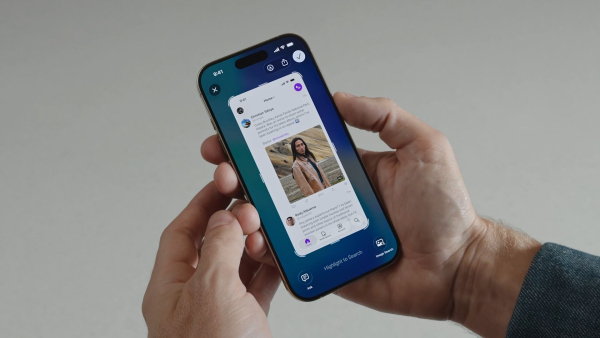
How to remove full-screen screenshots in iOS 26 / Apple
The iOS 26 update brought many positive changes to Apple users, but one innovation caused a wave of discontent. We are talking about a changed screenshot creation mechanism, which now opens a full-screen editor instead of a compact window. Fortunately, this can be removed and we will tell you how.
The new instant screenshot mechanism complicates the usual process of saving images, adding extra clicks where everything used to work automatically and much faster. 24 Channel will tell you from its own experience how to quickly fix everything.
What's wrong with the new feature?
Previously, taking a screenshot on an iPhone was as simple and intuitive as possible: after simultaneously pressing the power and volume up buttons, a small thumbnail appeared in the lower left corner.
The user could instantly tap on it to crop the image, add annotations, or simply swipe it away if the shot was simply to be saved to the gallery. iOS 26 radically changes this approach by making full-screen viewing the default setting.
In the new system, each captured image immediately expands to the entire display, offering tools for drawing, spreading, or deleting.
This means that to save a picture normally, you now need to perform a whole chain of actions:
- take a picture,
- find and click the check mark in the upper right corner,
- and then confirm your selection in the save menu.
While such an algorithm may be useful for those who work professionally with graphics, for most iPhone owners it has become a daily obstacle.
How to bring back the classic screenshot mechanics?
Fortunately, the developers have left the option to return to the old format of work. This allows you to make the process of creating screenshots as inconspicuous as it was in previous versions of the operating system. The step-by-step algorithm of actions in the device menu looks like this:
- You need to go to the “Settings” application;
- Go to the “General” section;
- Find and open the “Screenshot” item;
- Turn off the “Full Screen View” switch.
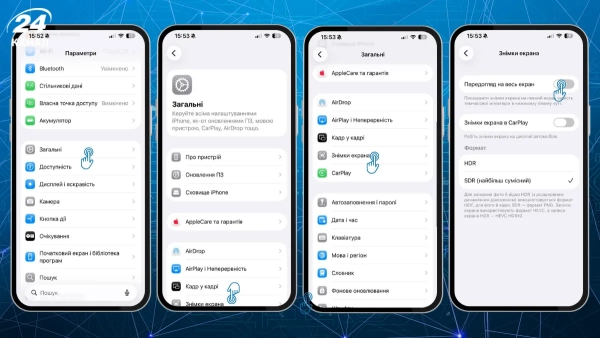
Here's how to quickly bring back the old screenshot mechanics / Photo by Channel 24
After performing these manipulations, your phone will return to the classic display of screenshots in the form of a small window in the corner of the screen, which significantly saves time when frequently copying information from the display.