
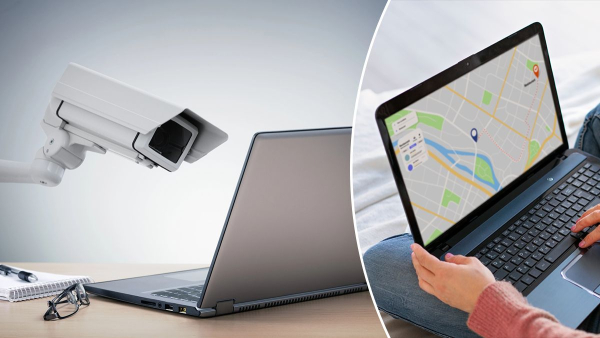
Google privacy settings and disabling user tracking / Collage 24 Channel/Depositphotos/Freepik
Google knows an incredible amount about its users, from their search history to every step they take with their location enabled. While this helps improve its services and deliver relevant advertising, many find this control too intrusive. There are tools that allow you to reclaim your privacy and limit the company's access to your personal information.
How to protect personal data from constant monitoring?
Google services are built on intensive information collection. The company records your search queries, YouTube viewing history, and activity in numerous applications. This is done in order to speed up searches and more accurately track your location, but this same data becomes the basis for targeted advertising and recommended content. Many users do not even suspect how deeply the technology giant penetrates their private lives, and the corporation itself often counts on the fact that people simply will not find the time to study security settings, writes 24 Channel .
Delete data and prevent its storage
The first step to digital freedom is to clear your web and app history. All actions in the Google ecosystem are recorded in a special activity section. Users have the option to immediately stop tracking by selecting the option to turn off, or go further and delete the information already accumulated from the company's servers.
Interestingly, the system can be set to automatically purge itself. You can choose intervals of 3, 18, or 36 months – any data older than that will disappear without any further intervention.
In addition to a general shutdown, you can manage the history of individual services, such as Maps, News, or Play Market, by deleting specific events or entire time periods.
To change these settings:
- On any Google service page, click on your avatar in the top right.
- Select “Manage Google Account”.
- Go to the “Data & Privacy” tab.
- Select the “App & Web Activity” menu.
Turn off geolocation tracking
Special attention deserves the control of movements, which is stored in the so-called “Chronology”. This is an extremely detailed map, where all your visits, routes and trips are recorded. The level of detail is impressive: in the system you can even see the exact path you drove by car on a particular day.
Google has recently changed the way it stores this data – Timeline is now stored on the user’s device by default, rather than in the cloud, and is automatically deleted after 3 months. However, it’s worth checking to see if cloud backup is enabled in the Google Maps app, as this makes your journeys available from any other device.
In the settings, you can also disable integration with Google Photos so that your photos do not appear on the travel map.
To change these settings:
- On any Google service page, click on your avatar in the top right.
- Select “Manage Google Account”.
- Go to the “Data & Privacy” tab.
- Select the “Timeline” menu.
Personalized advertising
The third important aspect is the fight against personalized advertising. Google uses your online activity, YouTube history, and location data to show ads that are relevant to your interests.
To put an end to this, you need to go to My Ads Center and turn this feature off completely. This will not only remove your previous preferences, but also prevent Google from using your current activity for marketing purposes.
Additionally, it is worth looking into the settings for advertising from partners and prohibiting third-party companies from using your data collected through Google services.
To change these settings:
- On any Google service page, click on your avatar in the top right.
- Select “Manage Google Account”.
- Go to the “Data & Privacy” tab.
- Select the “My Ad Center” menu, then just below “Partner Ad Settings.”