
More than just a keyboard: Google Gboard settings that will change your experience / Collage 24 Channel/Depositphotos
Gboard is the default keyboard for millions of Android users, as it’s often built into the system from the factory. However, factory settings are rarely optimal, which can make typing feel awkward or cluttered.
Many people put up with aggressive autocorrect or small keyboard keys without even realizing how easy it is to turn this tool into a personalized application. 24 Channel tells you how to do it.
What hidden features optimize your keyboard?
For those who spend a lot of time texting on their smartphones, constantly switching between symbols and numbers can be a real challenge. The easiest solution is to activate a separate number row that will always be displayed above the letters.
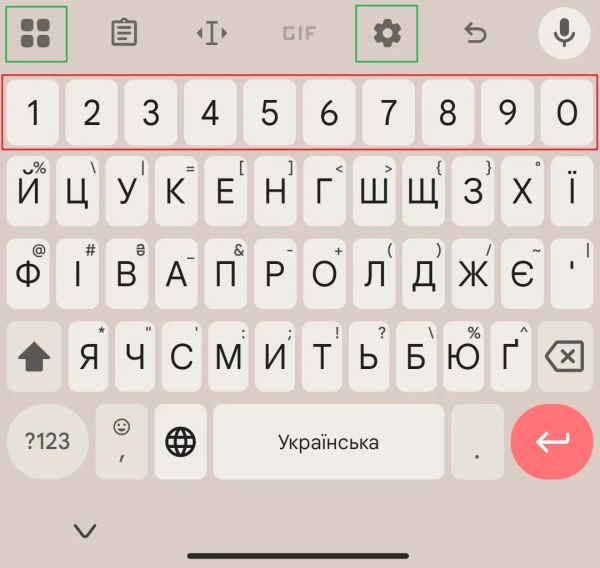
How to enable the number row on the keyboard / Screenshot of Channel 24
You can do this in the settings section. Find the settings icon – it may be either on the top row or hidden on the first button that looks like four squares. Then select “Options” and turn on the “Number row” toggle.
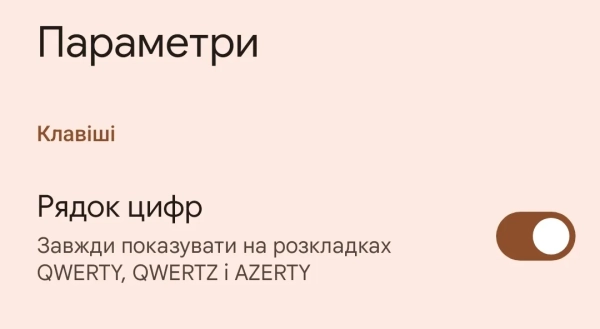
How to enable the number row on the keyboard / Screenshot of Channel 24
However, it is worth paying attention to the autocorrect system. Google often suggests too radical edits that only get in the way. Disabling the autocorrect and auto-capitalization options in the “Corrections and suggestions” section will allow you to regain full control over the content of your messages.
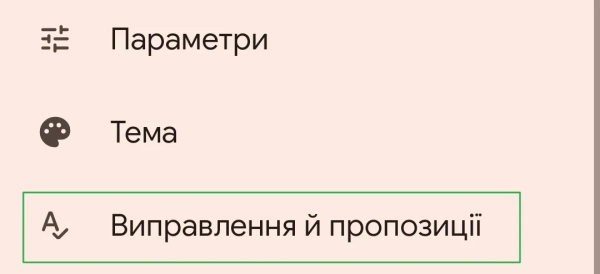
How to set up the autocorrect system / Screenshot of Channel 24
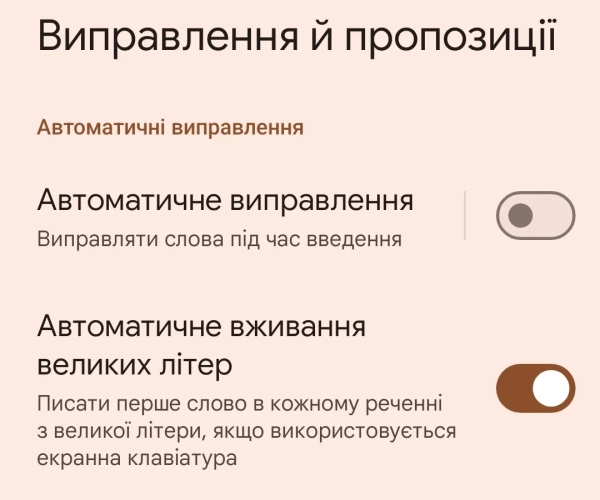
How to set up the autocorrect system / Screenshot of Channel 24
Typing comfort also depends on the physical parameters of the interface. If the standard keys seem too small, Gboard allows you to change their height. You can select the option to change the size through a special quick settings menu.
To do this, click on the button with four squares and select “Resize”. Now, at the top of the block, hold your finger on the horizontal gray line and drag up or down. This adds space between elements and reduces the number of false clicks. You can also adjust the keyboard position or change the font size for better visibility.
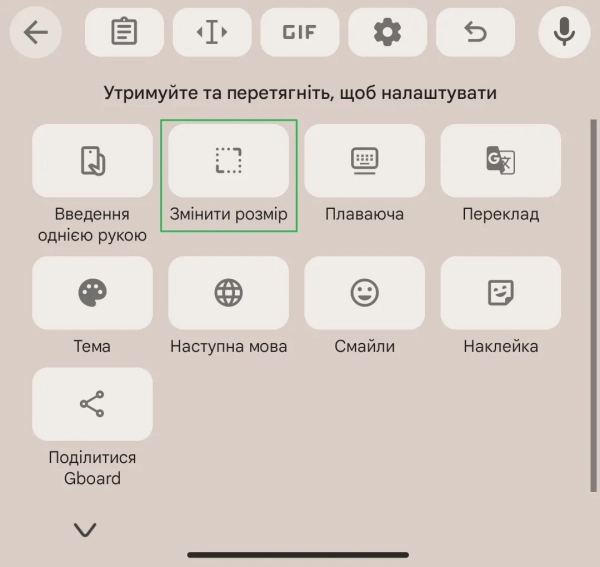
How to change keyboard size / Screenshot of Channel 24
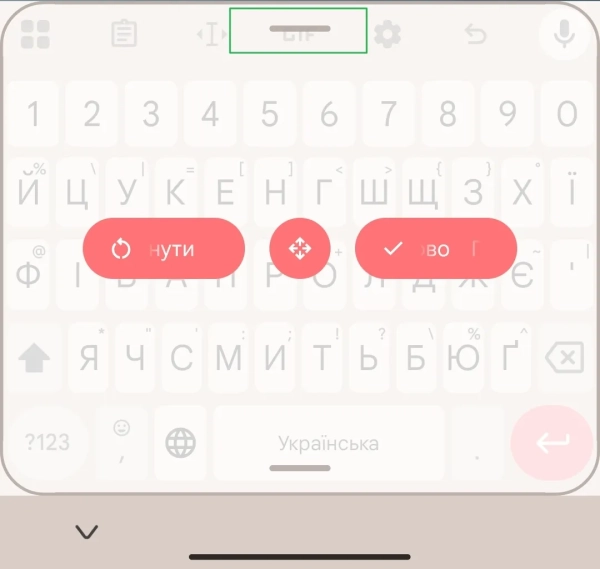
How to change keyboard size / Screenshot of Channel 24
Visual chaos is another problem with the default configuration. The top panel is often cluttered with shortcuts that most people never use. Unnecessary elements, such as a voice input button or a separate emoji key, can be easily hidden through the settings. This frees up space for truly useful tools, such as the clipboard, which is disabled by default.
By the way, the clipboard itself is also very useful. Once activated, the user gets access to the copy history, where you can pin important fragments of text for the future or save recent screenshots for quick sending.
To change the buttons on the top panel, click the same four-square button, then drag and drop any widget in and out of the panel. This way, you can pull up the features you use most often, while keeping everything else hidden in the menu.
Tactile sensations play an equally important role. If the vibration with each press seems too harsh or simply annoying, you can adjust its intensity or turn it off completely in the keystroke settings. To do this, go to the settings, select “Options”, scroll down and find “Keyboard vibration” and “Vibration intensity when pressing a key”. You can also turn off the keystroke sound a little higher if it annoys you.
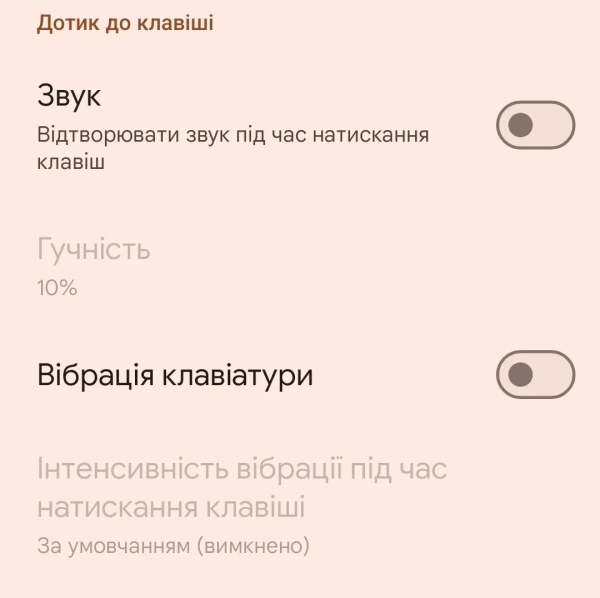
How to turn off keyboard vibration and sounds / Screenshot 24 Channel
Additionally, Google typically censors its dictionary, blocking suggestions for offensive or harsh words. If you want the keyboard to be more “open” and not correct certain expressions, you can turn off this filtering in the suggestions settings. To do this, go to settings, select “Corrections and suggestions,” and then uncheck the “Don't suggest offensive words” switch.
For true productivity masters, there are text shortcuts. In your personal dictionary, you can create presets where a short abbreviation will automatically expand into a long phrase. For example, entering just three letters can instantly substitute a work letter template with your signature or your home address. To do this, go to settings, select “Dictionary” – “Personal dictionary” – select the language in which your setting will work and tap the “Plus” sign at the top of the screen.
Is privacy important to you?
Finally, privacy is an important consideration. Since Gboard constantly collects data about typing style and usage statistics to improve its algorithms, many users prefer alternatives like the open-source Heliboard project. However, there are ways to minimize tracking within Gboard itself.
In the Privacy section, you can turn off telemetry features, such as sending usage statistics and input personalization, to keep your data as private as possible.
Although the keyboard cannot operate completely autonomously, these switches significantly reduce the amount of information transmitted to the company's servers.