
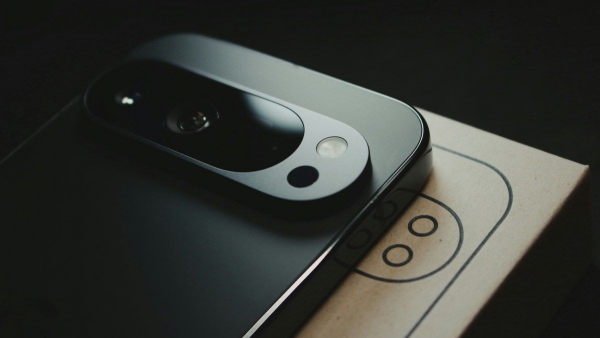
Google Pixel 10 Pro / Unsplash
Buying a new smartphone always comes with a long and sometimes tedious process of customizing it to your needs. The Google Pixel 10 and all its variations offer a lot of interesting features, but some of the most useful features are disabled by default or hidden deep in Android's menus.
How to turn your Pixel 10 into a perfectly personalized gadget?
One of the most important aspects of using a new device is taking care of the battery life. To do this, in the battery settings, you should activate the charging limit at 80 percent. This step allows you to significantly reduce the load on the battery, extending its overall service life, although it somewhat limits the daily energy reserve. To do this, go to “Settings” – “Battery” – “Battery status” – “Charging optimization” and set the switch to “Limit to 80%”, writes 24 Channel .
It would also be useful to enable the display of the charge percentage in the status bar, as this feature is often not activated by default. To do this, go to “Settings” – “Battery” and set the “Battery charge percentage” switch at the bottom.
Adjust the screen
To fully enjoy the quality of the Google Pixel 10 screen, you need to check the status of the smooth display function. It allows the smartphone to use a refresh rate of up to 120 hertz, which makes scrolling content and gaming much more pleasant on the eyes. Although it drains the battery a little faster, the visual difference is huge. To enable the increased frequency, go to the “Display and touch input” menu and at the very bottom set the “Smooth display” switch.
In addition, it is worth paying attention to the intelligent screen rotation. Instead of the usual automatic change of orientation, the smartphone can use the front camera to recognize the user's face to rotate the display only when it is really necessary. For example, if you lie down, the smartphone will understand this and will not flip the image, because it will see how your eyes are positioned. You can do this in the “Screen and touch input” – “Auto-rotate screen” – “Face recognition” menu.
If a protective glass or film is attached to the screen, you should increase the touch sensitivity in the touchscreen settings menu to maintain the device's response speed.
Communication and sound
The system's smart features extend beyond the screen to connectivity and sound. Adaptive connection settings help save power by automatically switching between 4G and 5G networks depending on data speed needs.
Adaptive vibration adjusts the strength of notifications: the smartphone will vibrate more softly when it is lying on a table, and more strongly if it is in a pocket or in a noisy environment.
For connoisseurs of high-quality sound, it is important to activate the spatial audio function, which makes the sound of the speakers in compatible movies and music tracks more voluminous and deep.
Additional convenience convenience
You can customize the gesture of double-tapping the back panel with your finger. For example, you can take a screenshot, launch the voice assistant, stop media, open specific applications, etc. To do this, go to the “System” menu – “Gestures” – “Double-tap to perform actions”. Choose what you like.
There you can also configure quick switching between the main and front cameras. To do this, just shake the phone. This is done in the “System” – “Gestures” – “Switching selfie camera” menu.
For an aesthetic look of your desktop, it is recommended to use themed icons that adjust their color to the installed wallpaper, creating a minimalist and orderly look. You can do this by holding your finger on the desktop and selecting “Appearance and style”. Be sure to go not only to “Colors”, but also to the “Icons” menu, because there you can enable themed icons that will be made in a single style, ignoring individual designs.
Security of your smartphone
Security in Android 16 has reached a new level thanks to the appearance of “Private Space”. This is a separate protected area in the application menu where you can hide confidential files, notes or applications, access to which will be closed by password or biometrics. To configure it, go to the “Security and privacy” menu and select “Private Space”.
In case you lose your smartphone, there is a device finder function. But you can increase the chances of its return if you go to the “Screen and touch input” menu, select “Lock screen” and in the “Lock screen text” item enter your email so that whoever finds the smartphone can contact you. You don't need to write your phone number, because the SIM card will remain in the smartphone.